3. Getting Started
3.1 Accessing the Platform
3.2 Navigating the Dashboard
3.3 Platform Navigation
3.4 Understanding User Levels
This section will guide you through the first steps of using the Hawk Discourse Platform, from accessing the platform to understanding its basic navigation and user roles. Each step is explained clearly to help you feel confident as you explore and engage.
3.1 Accessing the Platform
To begin using the Hawk Discourse Platform, you’ll need to log in or register for an account.
Login and Registration
Logging In
-
Navigate to the Hawk Discourse Platform URL in your browser.
-
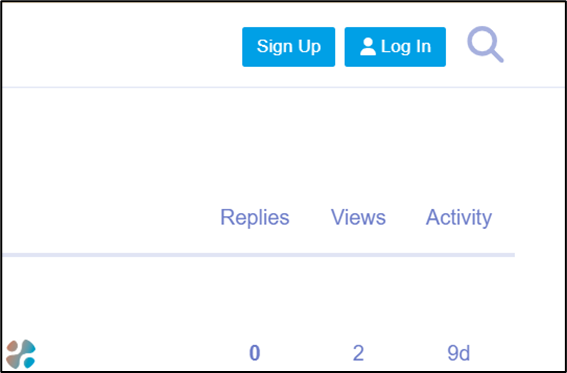
On the homepage, click Login in the top-right corner (see Figure 7).
Figure 7: Log In button -
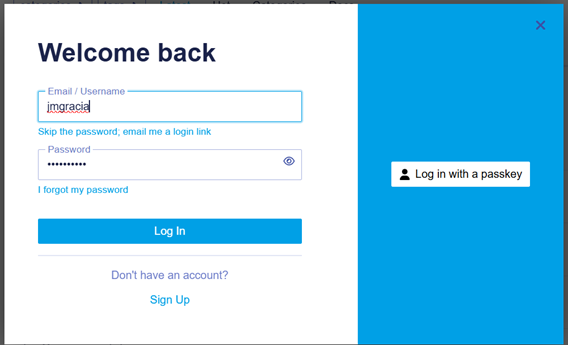
Enter your email and password in the fields provided.
Figure 8: Email and password to log in -
Click Log In to access your account.
Tip: If you forget your password, click the Forgot Password? link to reset it.
Registering for a New Account
If you’re new to the platform:
- On the login screen, click Sign Up
- Fill out the registration form with the following details:
- Name : Your full name (optional but recommended).
- Email Address : A valid email for verification.
- Password : Create a strong password.
- Click Sign Up to submit your registration.
- Check your email for a verification link and click it to activate your account.
3.2 Navigating the Dashboard
The dashboard is the central hub of the platform where you can quickly access the most important content.
Understanding the Dashboard Layout
- Top Menu (profile) : Displays your notifications, messages, and profile options
- Categories Panel : Lists all available categories for easy browsing.
- Latest Posts Section : Shows the most recent topics and replies.
- Search Bar : Located at the top-right corner for quick searches across the platform.
3.3 Platform Navigation
To make the most of the Hawk Discourse Platform, it’s important to understand its navigation system.
Main Menu Overview
The main menu provides quick access to key features:
- Categories : Organized areas for discussions on specific topics.
- Latest Posts : A real-time feed of new discussions and replies.
- Top Posts : Highlights the most popular discussions based on activity and engagement.
- Tags : Allows you to browse content by specific keywords.
- Groups : Displays all groups you’re a part of.
How to Access the Main Menu:
- Look at the top navigation bar.
- Click any menu item to explore its contents.
Search and Filters
The platform’s powerful search and filtering options make it easy to find exactly what you need.
How to Search:
-
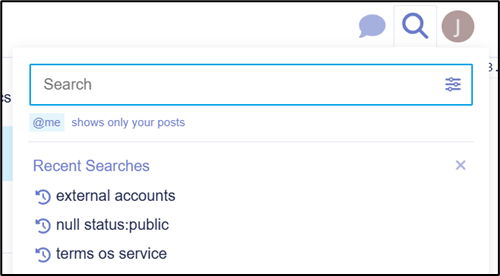
Click the Search Icon (magnifying glass) in the top-right corner (see Figure 9).
Figure 9: Search icon -
Type your keywords into the search bar.
-
Use filters (e.g., by category or date) to narrow down results.
-
Press Enter or click the search button to view results.
Using Filters:
- Navigate to a category or tag.
- Use the dropdown menus at the top of the page to filter content by:
- Date (Newest, Oldest).
- Activity (Most Replies, Least Replies).
- Tags.

Figure 10: Topic filters
3.4 Understanding User Levels
The Hawk Discourse Platform employs a User Trust Level System to ensure that users can gradually gain more privileges as they engage with the platform.
Roles and Permissions
Roles
- Admin : Manages the entire platform, including categories, user permissions, and settings.
- Moderator : Oversees discussions, resolves conflicts, and ensures platform rules are followed.
- Member : Standard users with the ability to read, post, and engage in discussions.
Trust Levels
The platform has five trust levels that define what actions a user can perform:
- Level 0 (New) : Basic permissions, such as reading topics and replying.
- Level 1 (Basic) : Ability to start new topics and use basic platform features.
- Level 2 (Member) : Gained after consistent engagement, includes access to advanced features.
- Level 3 (Regular) : Trusted users with privileges to edit tags and help moderate discussions.
- Level 4 (Leader) : Highly active and trusted members with special permissions.
How to Check Your Trust Level:
To understand your current trust level and permissions on the Hawk Discourse Platform:
- Visit Your Profile :
- Click on your avatar in the top-right corner of the screen.
- Select Profile from the dropdown menu.
- View the “Badges” Section :
- Navigate to the Badges tab in your profile.
- Look for any badges related to your trust level (e.g., Basic, Member, Regular, or Leader).
- Check for Notifications :
- When your trust level changes, you may receive a notification informing you of your new permissions and abilities.
- Contact a Moderator or Admin (if needed):
- If you’re unsure about your trust level, you can reach out to a moderator or admin for clarification.