6. Managing Your Profile
6.1 Viewing and Editing Your Profile
6.2 Viewing Groups and Members
Your profile on the Hawk Discourse Platform is your personal space, where you can manage your information, preferences, and interactions with groups. This section will guide you through the steps to view and update your profile, manage notifications, and engage with group members.
6.1 Viewing and Editing Your Profile
Your profile contains details about your activity, preferences, and achievements on the platform.
Viewing Your Profile
- Click on your Avatar in the top-right corner of the screen.
- The dropdown menu will display several sections:
- Notifications : View recent activity, such as replies, mentions, and earned badges.
- Replies : Posts where other users have replied to your content.
- Likes : Notifications about likes you’ve received.
- Personal Messages : Access private messages sent to you by other users.
- Bookmarks : View content you’ve bookmarked for easy access.
- Chat Notifications : See activity in your ongoing chats.
- Other Notifications : Miscellaneous updates related to your activity.
- Profile : Click this option to go to your full profile page.
- Select Profile from the dropdown menu (see Figure 19).
Figure 19: Profile selection button
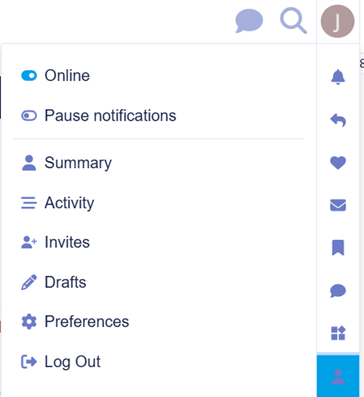
What You’ll See :
- Online : Check your current status.
- Pause Notifications : Temporarily stop receiving notifications.
- Summary : View an overview of your activity, including recent posts and stats.
- Activity : Access a detailed log of your posts, replies, and other interactions.
- Invites : Manage invitations you’ve sent or received.
- Drafts : Find any posts or topics you’ve saved as drafts but haven’t published yet.
- Preferences : Customize your account settings, such as notifications, profile details, and interface options.
- Log Out : Sign out of your account
Updating Information and Preferences
You can customize your profile to reflect your preferences and keep your information up to date.
- Go to your profile by following the steps above.
- Click the Preferences Tab.
- Update the following sections:
- Account : Change your email, password, or username.
- Profile : Add a bio, location, or profile picture.
- Interface : Choose your preferred language, theme, and time zone.
- Click Save Changes at the bottom of each section.
Tip: A complete profile helps other users recognize and connect with you.
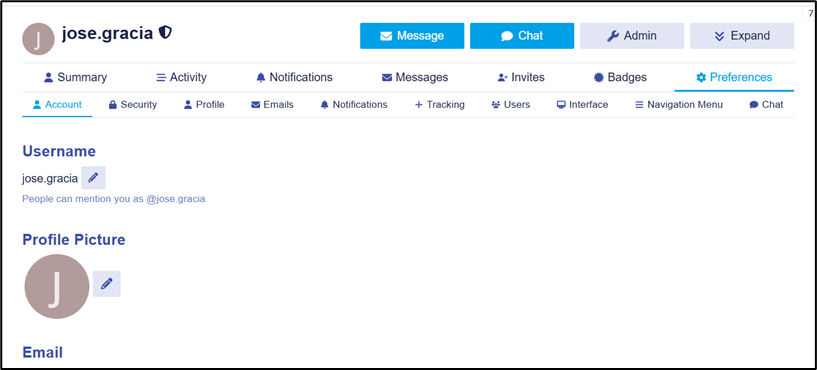
Figure 20: Profile window
Managing Notifications
Notifications keep you informed about replies, mentions, and other activities relevant to you.
- Go to the Preferences Tab in your profile.
- Select Notifications.
- Adjust the following settings:
- Email Preferences : Choose when to receive email notifications.
- Desktop Notifications : Enable or disable browser notifications.
- Mute Topics or Categories : Prevent notifications from specific topics or categories.
- Click Save Changes to apply your preferences
Tip: Customize notifications to avoid being overwhelmed while staying informed.
6.2 Viewing Groups and Members
Groups on the Hawk platform are collections of users who share common roles or projects, such as researchers or collaborators.
Accessing Groups You Belong To
- Go to your Profile and click the Groups Tab
- View a list of groups you are a member of.
- Each group displays its name, description, and number of members.
Tip: Group memberships are managed by administrators. If you believe you should belong to a specific group, contact a moderator.
Interacting with Other Group Members
-
Click on a group name in the Groups Tab to view its members.
-
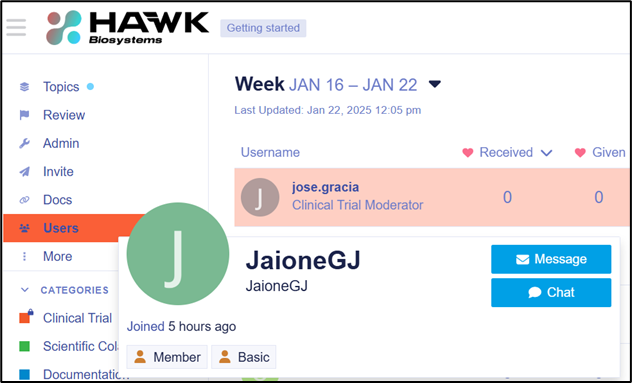
Use the Message Icon next to a member’s name to send a private message (if enabled) (see Figure 21).
Figure 21: Send a message to a user -
Participate in group-specific discussions by navigating to the Group’s Category on the homepage.
Tip: Collaboration within groups is key to effective teamwork. Use group discussions to share ideas and updates.