7. Advanced Features
7.1 Data Sharing and Collaboration
7.2 Analytics and Insights
The Hawk Discourse Platform offers advanced features to enhance collaboration and provide valuable insights. This section explains how to share data, integrate with external tools, and use analytics and surveys for better engagement.
7.1 Data Sharing and Collaboration
The Hawk Discourse Platform provides two primary methods for sharing data within discussions: uploading files directly from your computer or sharing links to files stored in cloud services like Google Drive or OneDrive. Below is a guide for both methods.
Method 1: Uploading Files Directly from Your Computer
This method allows you to attach files directly to your posts, subject to certain file format and size limitations.
How to Upload a File
- Using the Upload Button :
- Click the Upload Icon (a small arrow pointing upward) in the text editor
- Select a file from your computer and click Open to attach it.
- Using Drag-and-Drop :
- Open the topic or reply editor.
- Drag the file from your computer and drop it into the editor area.
Supported File Formats
Discourse supports commonly used file types such as:
- Documents : PDF, DOCX.
- Images : PNG, JPEG.
- Archives : ZIP.
Figure 22: File Formats supported
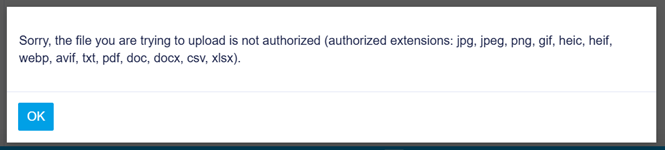
Tip: If your file is too large or not supported, consider sharing it using a cloud storage link (see Method 2).
Method 2: Sharing Links from Cloud Storage Services
For larger files or unsupported formats, you can share links from services like Google Drive or OneDrive.
How to Share a Cloud Storage Link
- Open your Google Drive or OneDrive account in a separate tab.
- Locate the file you want to share.
- Generate a Shareable Link :
- In Google Drive: Right-click the file, select Get Link, and set the permissions to Anyone with the link can view.
- In OneDrive: Right-click the file, select Share, and generate a shareable link.
- Copy the link to your clipboard.
- Paste the link into your Discourse post or reply.
How the Link Appears
- When pasted into the editor, Discourse will automatically embed the link as a clickable item.
- Depending on the file type, an embedded preview may be displayed for files such as PDFs or images.
Tip: Double-check the link permissions before sharing to ensure your intended audience can access the file.
Best Practices for Data Sharing
- Use Method 1 for smaller, commonly supported file formats.
- Use Method 2 for larger files or formats not supported by Discourse.
- Always follow platform guidelines and data protection policies when sharing sensitive information.
7.2 Analytics and Insights
The platform provides tools to monitor engagement with your posts and participate in community-driven surveys.
Viewing Post Engagement Statistics
- Accessing Analytics for Your Posts :
- Open the topic or post you want to analyze.
- Look for the Statistics Icon (a small chart) near the bottom of your post (see Figure 2).
- Click the icon to view metrics like:
- Number of views.
- Number of likes.
- Replies and quotes.
- Understanding the Data :
- Use these metrics to evaluate the effectiveness of your content.
- Identify popular topics and adjust future posts based on engagement trends.
Tip : Analytics are visible to topic creators and moderators only, ensuring data privacy.
Participating in Polls and Surveys
Polls and surveys are a great way to gather feedback and opinions from the community.
Creating a Poll
- Start a new topic or reply to an existing one.
- Click the Gear Icon in the text editor and select Build Poll
- Fill out the poll settings:
- Type : Single-choice, multiple-choice, or number rating.
- Options : List the choices for users to select.
- Close Date : Set an optional closing time for the poll.
- Click Insert Poll to add it to your post.
Participating in a Poll
- Open the topic containing the poll.
- Select your preferred option(s) and click Vote
- View the results instantly after voting or when the poll closes.