Within the program’s interface, users are granted access to a diverse array of saving and loading options, each meticulously designed to enhance efficiency and facilitate seamless workflow management:
Experiment Setup: Users can save and load the experiment setup configuration, enabling them to replicate experiments effortlessly.
Snapshot: Snapshots can be saved as individual files or with the “Save As” feature, allowing users to specify the file name and location for easy reference.
Statistics in Excel: Statistical data from the “Experiment Results” window can be exported to Excel format, facilitating in-depth analysis and reporting, with the option to change its name and directory.
Current Experiments or All Experiments: In the “Saving” window, users can save experiments for future use:
- Save Current Sample: Saves the active experiment defined in the experiment setup.
- Save All Experiments: Saves all experiments created in the experiment setup.
These saved experiments can be later loaded to the program in the “Experiment setup” window.
Images: Within the “Saving” window, users can customize image saving:
- Choose the desired image type (D, DA, LED, FRET)
- Choose between TIFF (images without edition) or PNG formats (images with edition).
- Specify which snapshots to save, if multiple captures were made.
- Select the images to capture (intensity or phase lifetime).
Once configurations are set, users can execute the saving process by clicking the “Save TIFF” button, with the option to browse for the desired saving location.
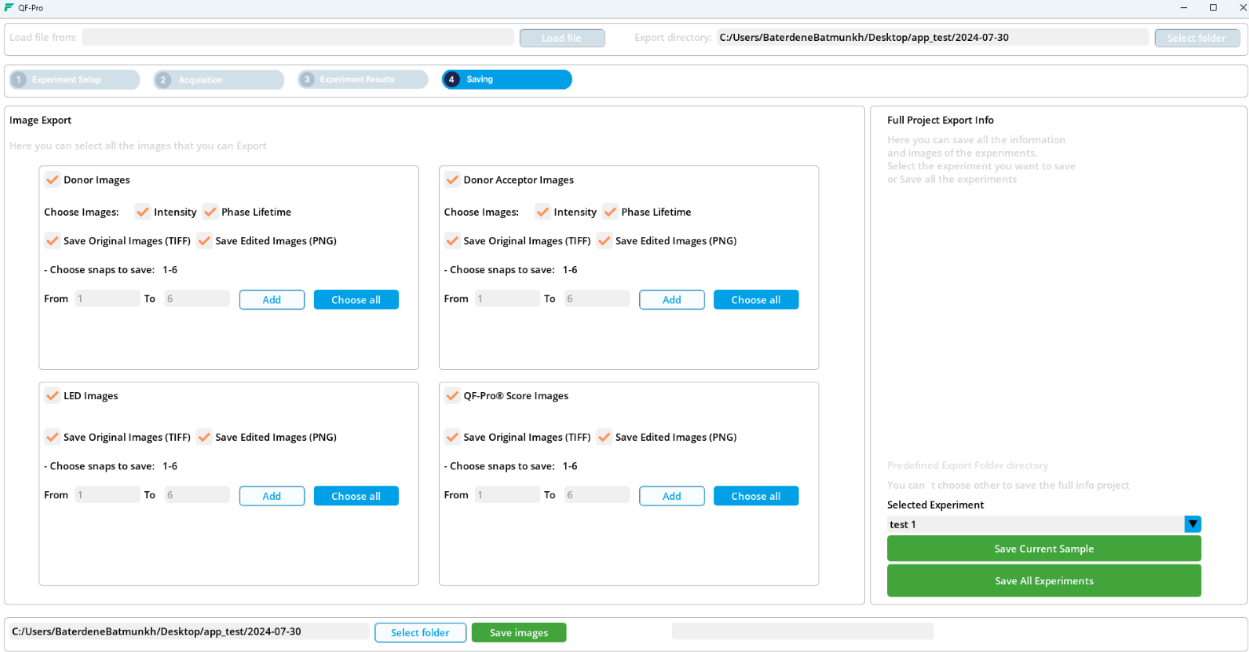
Saving window